Help / Captain: set up your team roster
Captain: set up your team roster
Add players, set numbers / positions / full-half-sub, and mark who is on the season roster. Subs auto-add; locked players need commissioner approval for name fixes.
How to
- Sign in at legendleagueshockey.com with your email and password. The first time, use the set-password link from your invite email (see Accounts and sign in).
- Open the Captain area and your team: on a computer, Captain in the top menu → your team → Settings. On a phone, More → Captain → tap your team → Settings. You only see teams you captain; commissioners see every team.

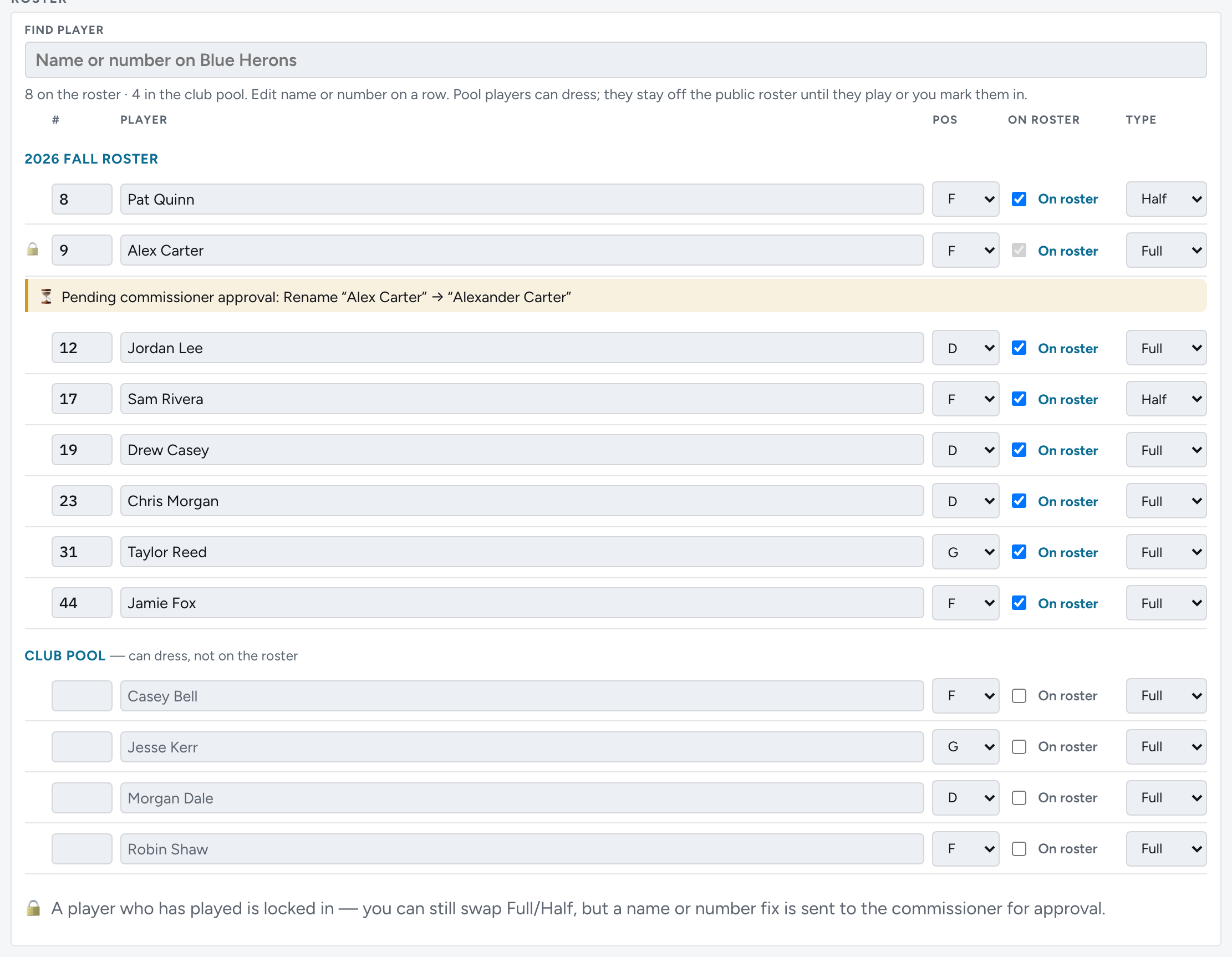
- Your roster has two groups: your season roster, and the Club pool — players who can dress but are not on the season roster yet. Pool players show on the public roster once they play or you mark them On roster.
- Add a player with the Add player form: name, number, and position (F / D / G). Search to add someone already in the league, or type a new name. Phone number is optional — the player can add it when they log in.

- On each row, set the number and position, use the On roster toggle to put a player on the season roster (or leave it off to keep them in the club pool), and set Type — Full, Half, or Sub. Edits save as you go. Anyone who dresses a game but was not on your roster is added as a Sub automatically.
- A player who has dressed a game is locked (🔒): you can still swap Full / Half, but a name or number fix goes to the commissioner for approval and shows as “Pending commissioner approval” on the row — it is submitted, not lost. A played club-pool player can still be set to Sub and moved onto the roster.

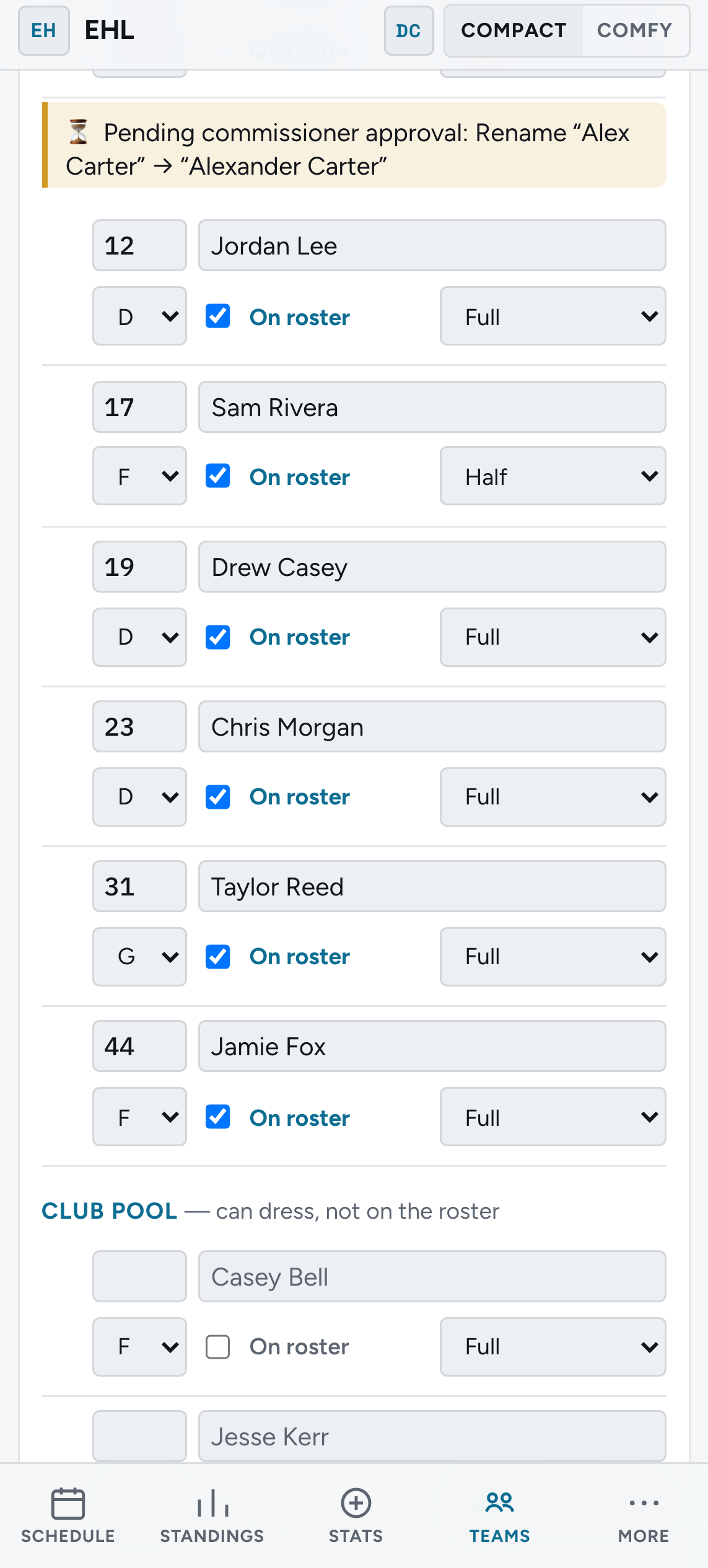
- On a phone, each player shows on two lines — number and name on top, then position / on roster / type below. Use Find player to jump on a long list.
- After a game is Final (or a forfeit / suspended game), open the public game while signed in — Correct [team] sheet — or Team settings → Recent games. Propose who dressed, goals, assists, and PIM for your team, with an optional note. A pending request shows as “Correction waiting”; approve/dismiss emails this login. The final score is not part of that request.
Upcoming lineups still save live. Do not wait on the commissioner to name a backup before puck drop.
After you save a lineup, those names stay checked. The public sheet is the same list.
- Schedule links pair clubs that share players so Plan season keeps them off the same ice.